Create Your Profile
While panels are the body of your simulator, profiles are its soul.
They are the registers that tell you how each of the components that make up your panel should behave, and they are versatile so you can use different profiles for the same panel depending on the situation, game, or needs.
You can create profiles for both your own panels and other people's panels, so you can adapt the functionality for each specific use. For example, you can create a profile for the same panel that allows you to pilot your spaceship by making certain keystrokes, but when you go to control your tractor, they make completely different keystrokes.
This way, you won't have to quickly reconfigure the controller calibration or fiddle with the menus and files for each of your games.
How to create your own profile for a panel
To get started with the "Profile Customizer," you can start from this link.
Also, if you access to the profile public page, you can access and download the profiles that users have created for that same panel, or even create your own custom profile from there.
It's also worth noting that you don't need to save a profile to use it. You can even load another user's profile, change the button you need, and download that profile directly to sync it with your panel.
NOTE: Each specific panel contains a reference code that identifies which profiles are compatible with it. Loading another profile or using the Profile Customizer from another panel and syncing it with a different one will simply cause it to not work as expected. You just need to load a corresponding profile or the default profile to be able to use it normally.
Once inside the "Profile Customizer", you can click on each of the components to add the desired functionality to each one.
With the component selected, a series of properties will be displayed in the right column to edit the component's unique features.
The components are divided into:
- Analog: Joysticks, Sliders, Potentiometers,... These will allow you to link it to a position axis (X, Y, Z, Throttle, Brake, Pitch, Yaw, Roll,...) to determine its default behavior within the game.
- Digital (Keyboard, Controller Buttons/Joystick): This will allow you to directly link keyboard or controller button presses to determine its default behavior within the game. Game.
Analog
This will allow you to directly configure the axis or axes to which they are automatically linked, as well as giving you the option to directly invert the input. This way, you won't have to struggle within the settings of the game in question.
Digital
These include all those components that don't have the option of having axes. They have certain special capabilities, such as:
- Switch: Generally used in conjunction with components that are "switches" (on/off) to perform a single press when the lever is raised (on), and another press (off, optional) when it is lowered.
- Press Time: When you want to keep that key or button pressed for a specific amount of time (for example, when you need to hold down a button to activate/start/launch something). This must be specified in milliseconds. That is, if you want to hold down the keys/button for 2 and a half seconds, you must enter 2500.
- Heartbeat: Generally used in conjunction with components that are "switches" (on/off). If you need an action to be repeated every X time, for example a buzzer signal. It must be indicated in Milliseconds. That is, if you want the keystroke to be repeated every 2 and a half seconds, you must enter 2500.
- Sound: If your panel has the ability to emit sounds, you can map what sound should play when the component is pressed.
Keyboard
Allows you to link keyboard presses (maximum 3 simultaneous keys) when this button or switch is pressed.
Joystick
Allows you to bind the input to one of the 32 default buttons on a gamepad controller.
Upload the profile to the device
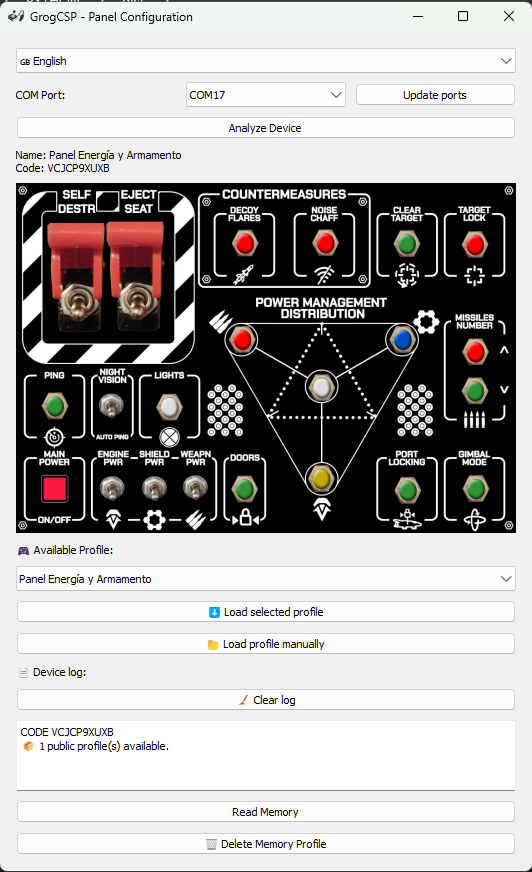
To upload the profile to your device, you must download the "Profile Uploader" application to your computer to upload the configuration file, or upload it directly from the list of public profiles once you connect the device to your computer.
Important note: When you connect the device to the computer, you must wait at least 10 seconds to be fully recognized by the Profile Uploader app. Also, when you upload a profile to the device, after the sucessfully message you most times need to disconnect and connect the device to be completely configured.
Download Profile Uploader
Hash SHA256: 306C804D68D12451E2187FC3E2F1603121A60F850F831E899147158D0D365DF9
VirusTotal Check: https://www.virustotal.com/gui/file/306c804d68d12451e2187fc3e2f1603121a60f850f831e899147158d0d365df9?nocache=1